

You send a PDF to your Kindle, open it, and there it is: a whole printed page shrunk onto a six-inch screen. The text is the size of an ant. You pinch to zoom, then scroll sideways along every line, then back again. Changing the font size does nothing. Reading a whole book like this is miserable.
The good news is that it is easy to fix, and it costs nothing.
Why a PDF won't fit your screen
A PDF is a picture of a printed page. It records exactly where every letter sits on a sheet of a fixed size, usually US Letter or A4. That is perfect for printing and useless on a small screen, because the page cannot change shape. A Kindle can only shrink the whole page down or show you a zoomed-in piece of it.
A real ebook works the other way. EPUB and Kindle books store the text as a flowing stream with headings and paragraphs, and the reader lays it out to fit whatever screen it is on. That is called reflowable text, and it is why you can make the letters bigger, change the font, or turn your Kindle sideways in an ebook and the lines simply rewrap.
So the fix is not a setting on your Kindle. It is turning the PDF into a reflowable ebook first.
The free fix: convert the PDF to EPUB
We built a free tool for exactly this. Open PDF to EPUB, choose your PDF, and it gives you back an EPUB with real chapters, flowing text and a cover. The conversion runs entirely in your browser, so your file is never uploaded to anyone, and there is no sign-up and no daily limit.
- Go to lostlibrary.app/pdf-to-epub.
- Choose your PDF, or drag it anywhere on the page.
- Download the EPUB, or send it straight to your reader.
It handles PDFs up to 200 MB and 2,000 pages. Scanned books, where each page is a photograph, work too: the tool reads the text off the page images first, which takes a little longer.
Getting it onto your Kindle
Since 2022, Amazon's Send to Kindle accepts EPUB files and turns them into Kindle books. There are three ways to send one:
- Send to Kindle on the web. Sign in at Amazon's Send to Kindle page and drag the EPUB in. This is the easiest way and takes files up to 200 MB.
- Email. Every Kindle has its own @kindle.com address (find it under Settings, or in "Manage Your Content and Devices" on Amazon). Email the EPUB to it as an attachment. The email limit is 50 MB, and you first need to add your own address to the approved senders list.
- The Kindle app on your phone. Share the file to the Kindle app and choose Send to Kindle.
A minute later the book appears in your library, with adjustable text like any book you bought. Our send a PDF to Kindle page has the same steps in short.
Kobo, Apple Books and other readers
Kobo, Nook, Apple Books, Google Play Books and almost every other reading app open EPUB directly, so the converted file just works:
- Kobo: plug it into your computer and copy the EPUB into the device, or add it to Dropbox if you have linked it. See PDF to Kobo.
- iPhone and iPad: open the EPUB from Files or Mail and choose Books. See PDF to Apple Books.
When to keep the PDF
Reflowing is right for books: novels, essays, histories, anything that is mostly running text. It is the wrong choice for documents whose layout is the content. Keep the PDF for:
- sheet music, maps and diagrams,
- comics and picture books,
- forms, spreadsheets and anything with complicated tables,
- textbooks full of equations.
For those, a tablet with a bigger screen is the honest answer.
Tips for the best result
- Text PDFs convert best. If you can select and copy words in the PDF, the conversion will be clean.
- Scans take longer. The tool has to recognize the letters on each page. A clear scan gives good text; a blurry photocopy may give a few odd words.
Or skip the PDF altogether
If the book you want is an old classic, you may not need a PDF at all. Thousands of public-domain books are already here as clean, properly made EPUBs, ready to send to any reader. A few that read beautifully on e-ink:


For more ways to fill a Kindle legally, see how to get free books on your Kindle.
Questions people ask
- Why is the text so small when I open a PDF on my Kindle?
- A PDF is a fixed printed page, so the Kindle has to shrink the whole page to fit the screen. Changing the font size doesn't help because the text can't reflow. Converting the PDF to EPUB fixes it.
- Can a Kindle read PDF files?
- Yes, a Kindle can open PDFs, but it shows them as fixed pages that you have to zoom and pan. For books, it is much better to convert the PDF to EPUB and send that with Send to Kindle.
- How do I convert a PDF to a Kindle book for free?
- Open lostlibrary.app/pdf-to-epub, choose the PDF and download the EPUB. Then send it to your Kindle with Amazon's Send to Kindle web page, the app or your @kindle.com email address.
- Is my PDF uploaded when I convert it?
- No. The Lost Library converter runs entirely in your web browser, so the file never leaves your device.
- Does it work with scanned PDFs?
- Yes. The tool recognizes the text on scanned pages before building the ebook. It takes longer than a text PDF, and very blurry scans may have a few mistakes.
- What is the file size limit for Send to Kindle?
- 200 MB through the Send to Kindle web page and apps, and 50 MB by email.
Every book in this post
Free to read online, download, or send to your Kindle.
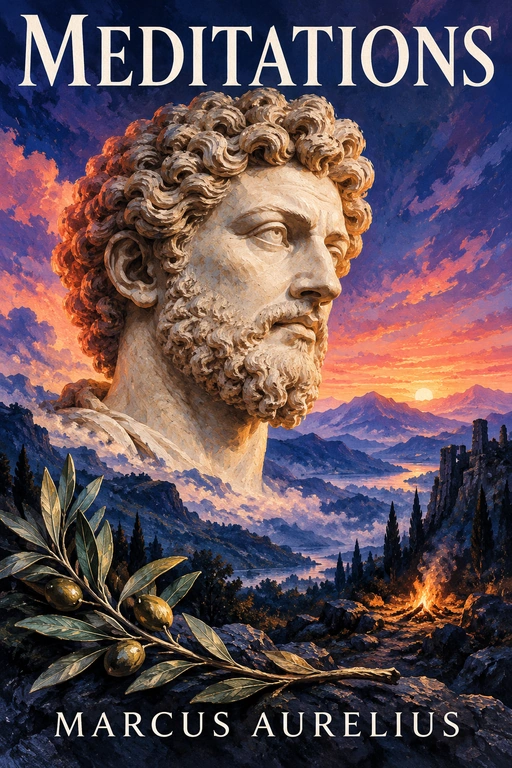
Meditations
Marcus Aurelius · c. 170
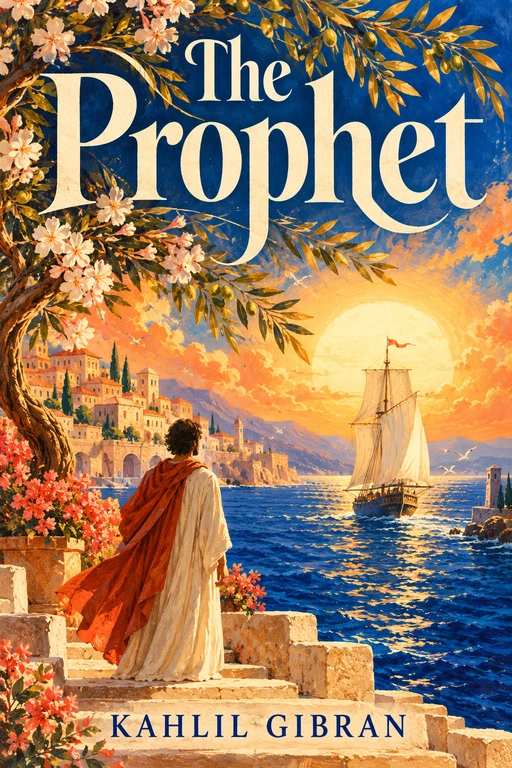
The Prophet
Kahlil Gibran · 1923
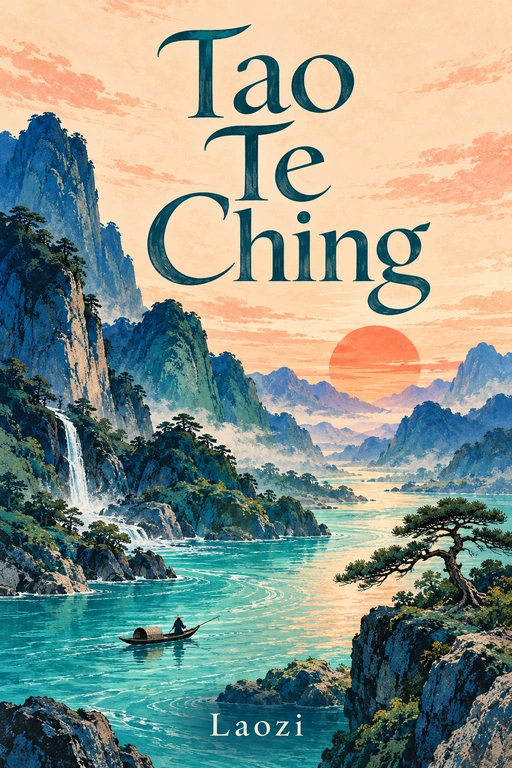
Tao Te Ching
Laozi · c. 550 BC
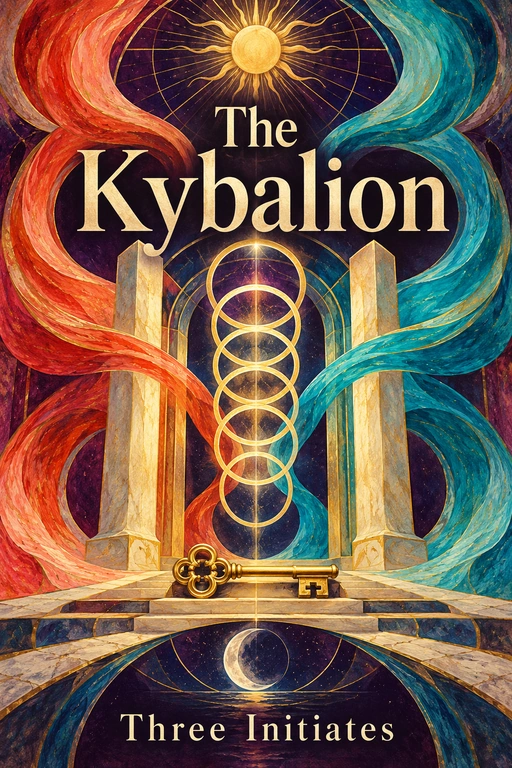
The Kybalion
Three Initiates · 1908
A Christmas Carol
Charles Dickens · 1843
Keep reading
Reading guides
EPUB vs PDF: which ebook format should you use?
EPUB or PDF? What each format is for, which one works on Kindle, Kobo, iPhone and Android, what happened to MOBI, and how to turn a PDF into an EPUB for free.
Reading guides
How to get free books on your Kindle, legally (step by step)
Four legal ways to fill a Kindle for free: Send to Kindle with free EPUBs, Amazon's own free classics, library loans through Libby, and Prime Reading. Step by step, with what each is good for.
Reading guides
Lost Library vs Project Gutenberg: what's the difference, and when to use each
Project Gutenberg is the great free library of the internet, and most of our books are built on its work. Here is an honest look at what each one does best, and which to use when.